

LoreKarambit
 —
—
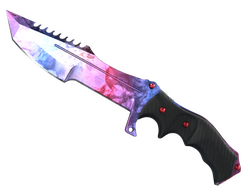
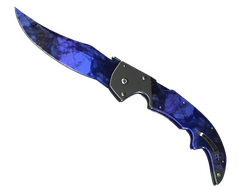
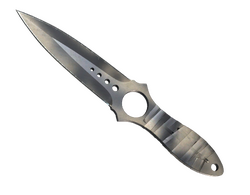
Skin examples · waiting for live feed
If a page does not load or an action returns an error, first record what happened. Repeated clicks may not fix the cause and can make it harder to establish the result.
Open musor.biz and check the browser address bar before continuing. If authorization opens an external service, verify that service’s domain directly in the browser. Never provide a password or sign-in code in a support conversation.
Save the exact error message. Check whether the browser blocked a required window and whether your connection is working, then try again. If the issue continues, report your browser, device and the step at which sign-in stopped.
Check that you signed in to the intended account. If an operation’s result is missing, do not repeat the operation simply because the display is delayed. Refresh the information first and, if a history is available, compare entries by time and identifier.
Sign out after using a shared device. If you notice unfamiliar activity, stop making changes and review the security of the linked account through that account’s own settings.
Describe the sequence: the page you opened, what you selected, which button you pressed and what appeared next. Include the date, time and time zone, the exact error message and an operation identifier if available.
A screenshot helps when it shows the problem itself. Hide credentials and unnecessary personal details. Use a contact channel published on the site; independently verify any sender who asks for a password, confirmation code or additional operation as part of a “check.”